

Introduction
The workflow system is the backbone of automated operations within Systematica. Its primary purpose is to orchestrate complex sequences of tasks, such as data processing, model execution, and trade generation, in a reliable and repeatable manner. Key purposes include:- Automation: Automate multi-step processes to reduce manual intervention and operational risk.
- Scheduling: Execute trading strategies and operational tasks at specific times
- Scalability: Manage a large number of concurrent processes efficiently.
- Resilience: Ensure that tasks are completed successfully, with mechanisms for retries and error handling.
- Logs and Reporting: Provide clear visibility into the status and performance of all automated processes with custom logging and slack reporting messages.
- Multiprocessing: By default, the
schedulelibrary runs jobs sequentially. To work around this, we using themultiprocessingmodule to run each job in its own process. This allows strategies sharing the same timeframe to execute concurrently. More details in the documentation. - CLI Integration: By leveraging
typer’s simplicity and flexibility, the main function is defined as a CLI command that accepts parameters such astemplate,lookback,since,max_buffer, andreport_every. These parameters allow users to customize the behavior of the schedulers, including the data slicing period, buffer limits, and reporting frequency. The CLI initializes configurations from templates, sets up schedulers for both reporting and trading tasks, and enters a loop to execute pending jobs at specified intervals.
Scheduling Templates
Workflows are defined as a series of steps or tasks. The scheduling of these workflows can be configured using different strategies. Workflows can be scheduled to run at specific times or intervals (e.g., daily at market open, every 5 minutes). This is useful for routine tasks like data fetching or end-of-day reporting.Configuration Templates
To promote reusability and consistency, the system uses workflow templates. Workflows are defined intoml format configuration files. A workflow configuration specifies:
- Meta:
- Study Name: Study name to be shared to the server. The symbol will be added in the “stategy” name, such as
my-study-name-BTCUSDT. - Tags: Added tags
- Study Name: Study name to be shared to the server. The symbol will be added in the “stategy” name, such as
- Loader: Data loader name. Must be instance of
vbt.Dataand systematica attribute. By default, the loader is set toBFCData, which pulls the internal database through SQL and return data as a vectorbtproDataobject. - Loader Parameters:
- Symbols: List of symbols.
- Timeframe: The timeframe format is standardized across the entire VBT codebase, including all preset data classes.
- table: Name of the table in the database.
- Index Column: Datetime index column.
- Engine Name: Name of the database.
- Engine: URL of the database.
- Start: Starting date.
- End: Ending date.
- Number of Records: Number of records to load.
- Frequency: Frequency of the data to be resampled to.
- Model: Named of the API class.
- Model Parameters: Fine-tuned parameters, specific to the model.
- Signal Parameters: Fine-tuned parameters, specific to the signal generation.
- Portfolio Parameters: Vectorbt PRO parameters.
Architecture and Orchestration
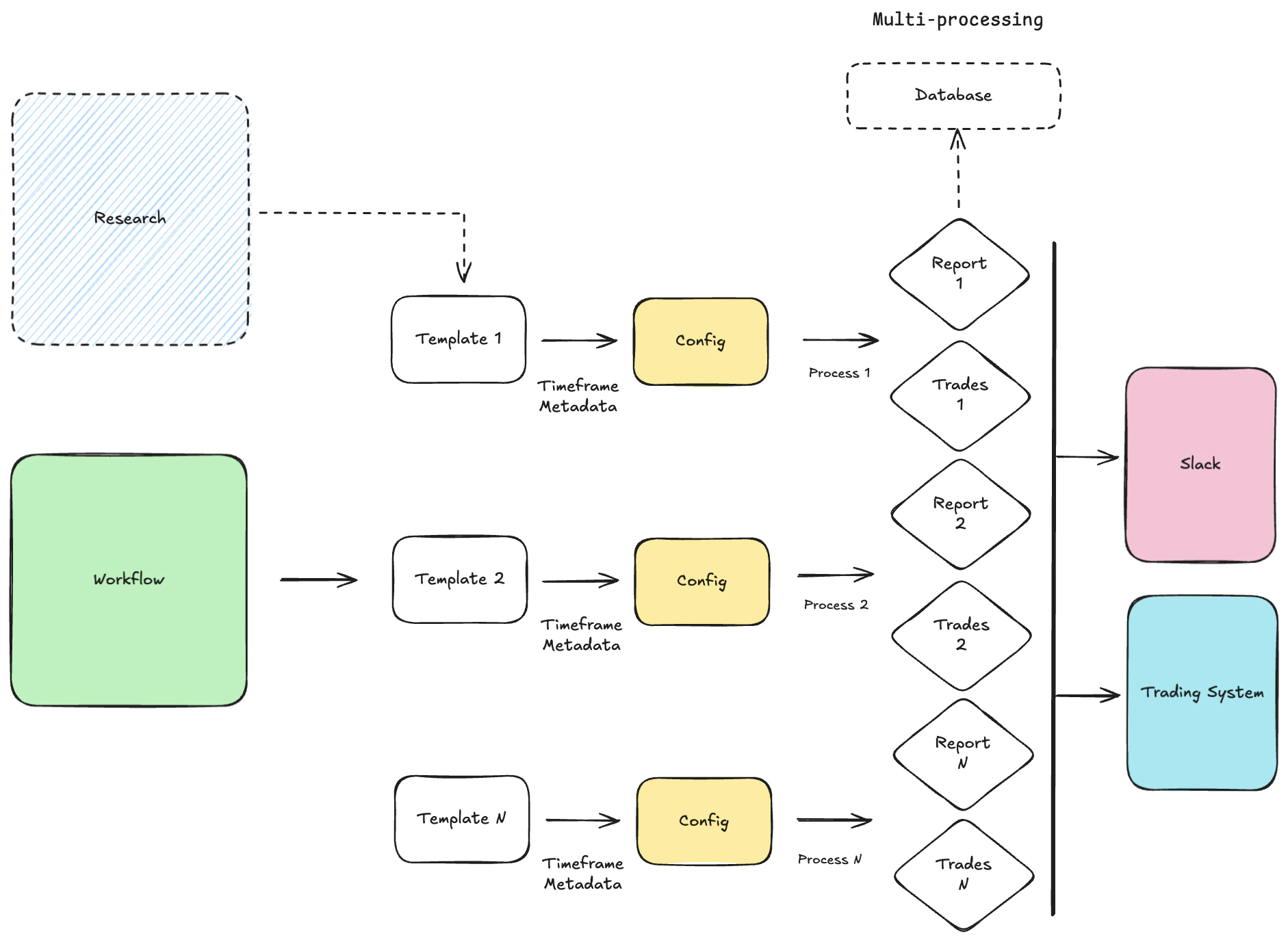
- Scheduler: Responsible for triggering workflows based on their defined schedules. It runs Python functions periodically using the schedule library.
- Error handling: Workflow uses tenacity, an Apache 2.0 licensed general-purpose retrying library, written in Python, to simplify the task of adding retry behavior.
- Orchestrator/Engine: It uses multiprocessing python package.
multiprocessingis a package that supports spawning processes using an API similar to the threading module. Themultiprocessingpackage offers both local and remote concurrency, effectively side-stepping the Global Interpreter Lock by using subprocesses instead of threads. - Executor: Executes the individual tasks within a workflow. Tasks are stored in
./portfolio/integration/scheduling(e.i.ReportSchedulerorTradeScheduler). - Logging: Persists the state of all workflow steps, including task statuses, for auditing purposes.
- Reporting: Tasks within a workflow can be designated to generate reports. These reports can summarize strategy performance, risk exposure, or operational health. The output can be in various formats (e.g., PNG, PDF, CSV, HTML) and distributed via slack messages or saved to a specific location.
- Trades: Workflows that involve trading strategies will have tasks that generate trade orders. These orders are then passed to the Order Management System (OMS) for execution. The workflow can monitor the status of these orders and react accordingly (e.g., update positions, log executions). This integration ensures a seamless flow from signal generation to trade execution with minimum slippage.
Command Line Interface
Typer’s integration ensures that the workflow is user-friendly and easily configurable, enabling efficient execution of scheduled tasks. The advantages of using a Command Line Interface include its speed, lower resource usage, and automation capabilities. It also supports scripting, enabling users to automate repetitive tasks.Run an Instance
To run a single instance, navigate to the project root directory and execute the following command:Run All Templates
To run a multiple processes at once, navigate to the project root directory and execute the following command: g.workflow/templates directory, runs all scheduled tasks and publishes all reports every specified timeframe.
To add another strategy, we only need to save a template in the .workflow/templates.
The script exposes the following CLI options: